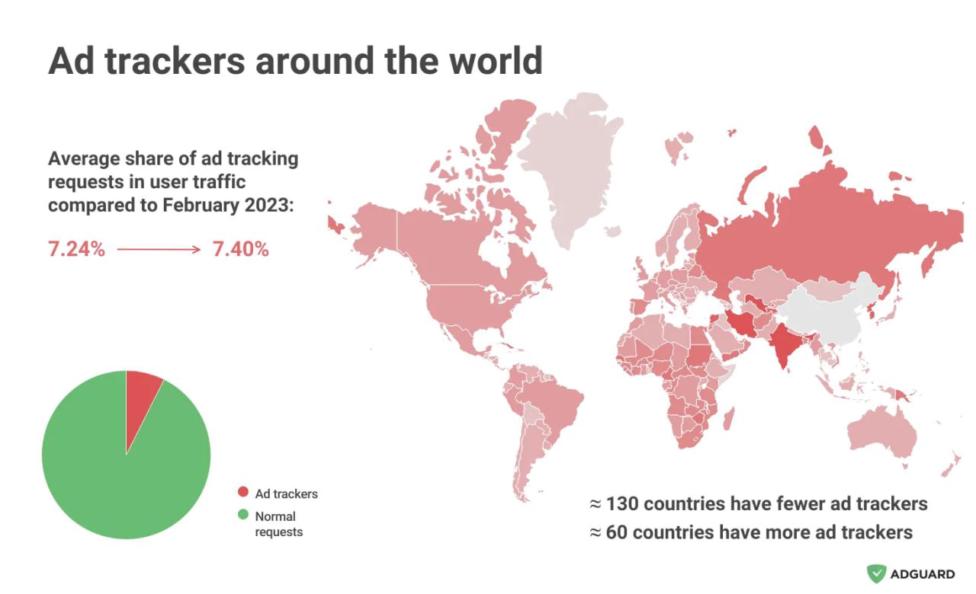
As bad as ads are, at least you are aware of them. Trackers, on the other hand, are invisible and follow you everywhere. How much of your traffic is actually taken away by tracking?
Ads don't just get on your nerves, they also have a tangible negative effect on your browsing: they eat up traffic and take time to load. AdGuard conducted a study to put this effect in numbers.
As bad as ads are, every ad brings along a tracking script. This is AdGuard's traditional ad tracker report, where we look into how many ad trackers there are in different countries' traffic.
Traditionally, at the end of the year we take a look at the state of ad trackers around the world. This article teases the big one that will soon follow with more insights and interactive maps.
We're releasing the second report on the state of ad trackers — ads and trackers — around the world. Find your country and see how much traffic is consumed by ads at the place where you live.
It seems like ads are everywhere, but is it really so? Find out in our new report how the share of ads and trackers varies around the world, how much traffic they eat up on average, and what the situation is like in your country.
All done!
Something went wrong
Subscribe to our news
You’ve successfully subscribed to AdGuard news. Emails will be sent to ${subscribeSlotProps.email}
You can also subscribe using a different email address
Please try again. If it doesn’t help, please contact support
Be the first to get the latest news about online privacy and ad blocking, AdGuard product releases, upcoming sales, giveaways, and more
Invalid captcha
Captcha is required
Downloading AdGuard
To install AdGuard, click the file indicated by the arrow
Select "Open" and click "OK", then wait for the file to be downloaded. In the opened window, drag the AdGuard icon to the "Applications" folder. Thank you for choosing AdGuard!
Select "Open" and click "OK", then wait for the file to be downloaded. In the opened window, click "Install". Thank you for choosing AdGuard!
Install AdGuard on your mobile device
Installation
AdGuard for Android is available in the following app stores:
AdGuard can’t be published on Google Play. For more details, check out our blog. If you’re using Google Play, follow these instructions to manually install AdGuard for Android.
1. Allow downloading
If your browser displays a warning, allow downloading adguard.apk.
Installation permissions
If installations from your browser are not allowed, you’ll get a notification. In this notification, tap Settings → Allow from this source.
Note for Samsung users with One UI 6 (Android 14) and newer
On some Samsung devices, the Auto Blocker feature may prevent APK installations. To install the app:
Open your device settings.
Go to Security and privacy.
Scroll down and tap Auto Blocker.
Disable the setting.
You can re-enable this feature after the installation.
2. Install the app
In the pop-up dialog, tap Install.
3. Launch the app
Wait for the installation to complete and tap Open. All done!
Scan to download
Use any QR-code reader available on your device
Scan to download
Use any QR-code reader available on your device
Download an older AdGuard version?
This OS version isn’t supported. You can use an older version of AdGuard, but it won't receive updates
By downloading the program you accept the terms of the License agreement