AdGuard for Windows v8.0: a new chapter of protection

The new version is currently in the early stages of rollout and we expect it to reach all existing users in the coming weeks.

A brand-new version, a new major number, a fresh design — and, most importantly, truly system-wide protection. AdGuard for Windows v8.0 doesn’t just look different: it gives you clearer control over the traffic on your computer and makes the most important settings easier to reach.

Ready to check it out? Just update your current app. If you’ve never tried AdGuard for Windows before, get the app by clicking the button below.

If you’d rather read first — here’s why this release is big enough to deserve a new number. There’s something here for power users, and something for those who simply want the clean, safe Internet without having to think about it.

Truly system-wide protection: why we filter all apps

Alongside the DNS filtering you already have, AdGuard offers full-fledged network-level filtering. This means stronger protection and more control: you can filter all Internet traffic on your device, so your protection is system-wide.

You might ask: why does system-wide filtering even matter? Isn’t blocking ads in browsers enough? On desktops, browsers still generate about 55–60% of total traffic — but that still leaves a huge share for other apps. Tracking inside apps is often even more invasive than on websites. Apps can access more personal data, interact directly with device resources, and use persistent identifiers that websites simply can’t. That’s why filtering all device traffic is so important.

Also, our research on popular Windows software showed that a significant share of telemetry and advertising requests comes from desktop apps — messengers, game launchers, media players, PDF readers and others — not just from websites. Many of these apps use the same domains for core functionality and for tracking, so simple domain blocking would break them.

To solve this, v8.0 uses path‑level HTTPS filtering and app‑specific rules that remove tracking requests while keeping the app’s main features intact. Filtering all apps by default ensures that you’re protected everywhere on your system, not only in the browser.

More about how desktop apps track you and why system‑wide filtering matters

🛡️
AdGuard uses a special network driver that handles the actual sending and receiving of data, allowing us to filter traffic from every app on your device.

Of course, DNS protection is still there — you can choose a DNS server and filter content that way. But DNS filtering is less flexible, and some tracking requests can still get through.

This is where HTTPS filtering becomes essential. With it enabled, AdGuard can inspect traffic within Windows apps. This allows us to distinguish between legitimate content and tracking requests, even when they come from the same domain.

For example, you open the Facebook app and just mind your own business. What you can’t see are the tracking requests immediately appearing in the background. The catch is that Facebook serves both legitimate content and tracking requests (like https://graph.facebook.com/network_ads) from the exact same domain. If you try to stop this tracking via DNS, you only have one choice: block the domain entirely. But doing that would break the app completely, meaning you couldn’t even log in or load your feed.
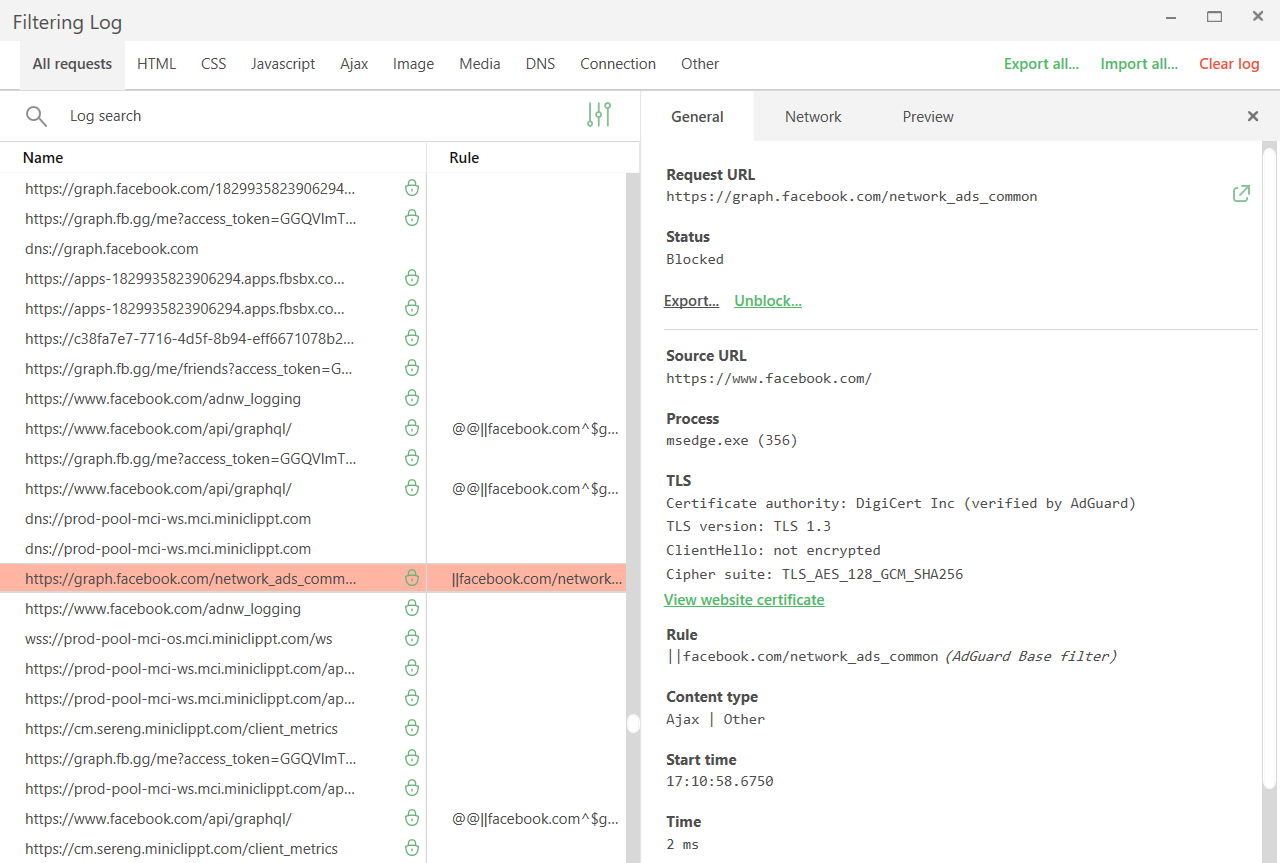
Tracking requests *border

Network filtering lets us be much more precise here. By decrypting the traffic, AdGuard can identify the full URL and block only the tracking requests while leaving the rest of the app working just fine.

While HTTPS filtering is enabled for browsers by default, it is disabled for most other apps to ensure better compatibility. You can always enable it for extra protection: just select the application you want to filter in App management and toggle on Filter HTTPS traffic.
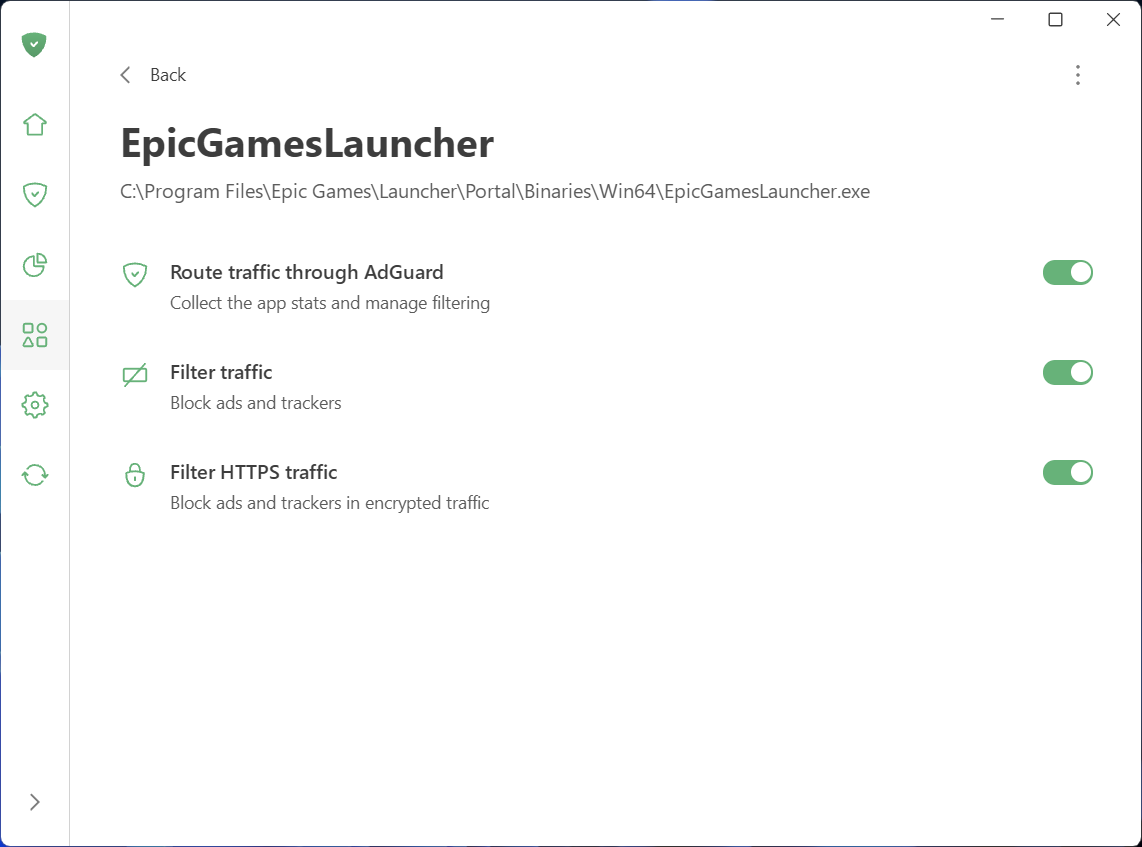
Filter HTTPS traffic

Speaking of App management: this new section, along with Statistics, gives you full control and transparency over what apps are doing on your PC.

See what your apps are doing and take control

To make managing traffic easier and give you a clear picture of what’s happening on your device, we’ve added two new sections: App management and Statistics.

What you can do in App management

App management lets you control how each app accesses the Internet. By default, AdGuard filters everything. As soon as an app goes online, it appears in App management, and its traffic is routed through AdGuard. From there, you can configure what to do with the app and how to filter it:

  • Decide which apps have their traffic routed through AdGuard
  • Choose to block ads and trackers in specific apps
  • Enable HTTPS filtering in apps of your choice
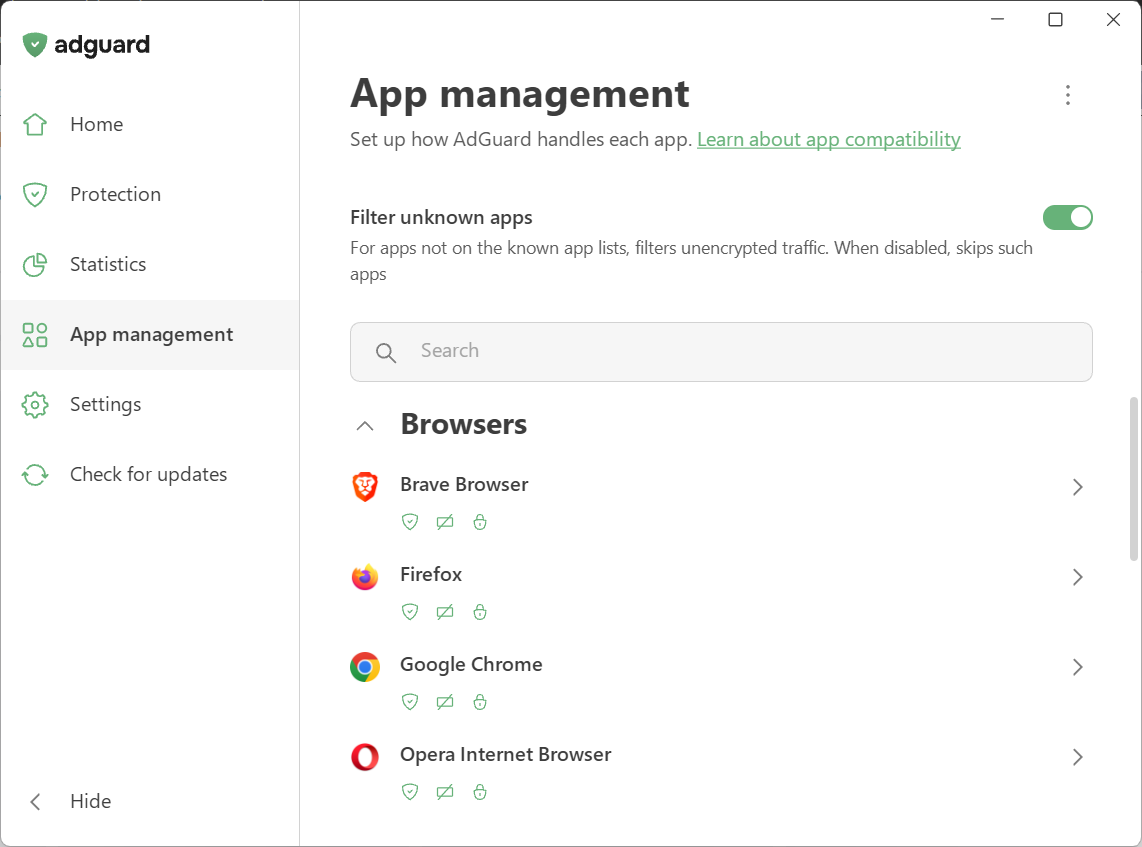
App management

We’ve also introduced Filter unknown apps, a new setting for handling apps that are not yet in the compatibility or exclusion lists. It’s on by default — new apps get regular filtering, while HTTPS interception stays off to avoid affecting app behavior. Read our Knowledge Base article for more details.

What you can see in Statistics

Statistics show detailed network activity. The Companies section provides a perspective on all the companies that your device has sent requests to, while in Apps and Domains you see the stats specific traffic data for every app routed through AdGuard.
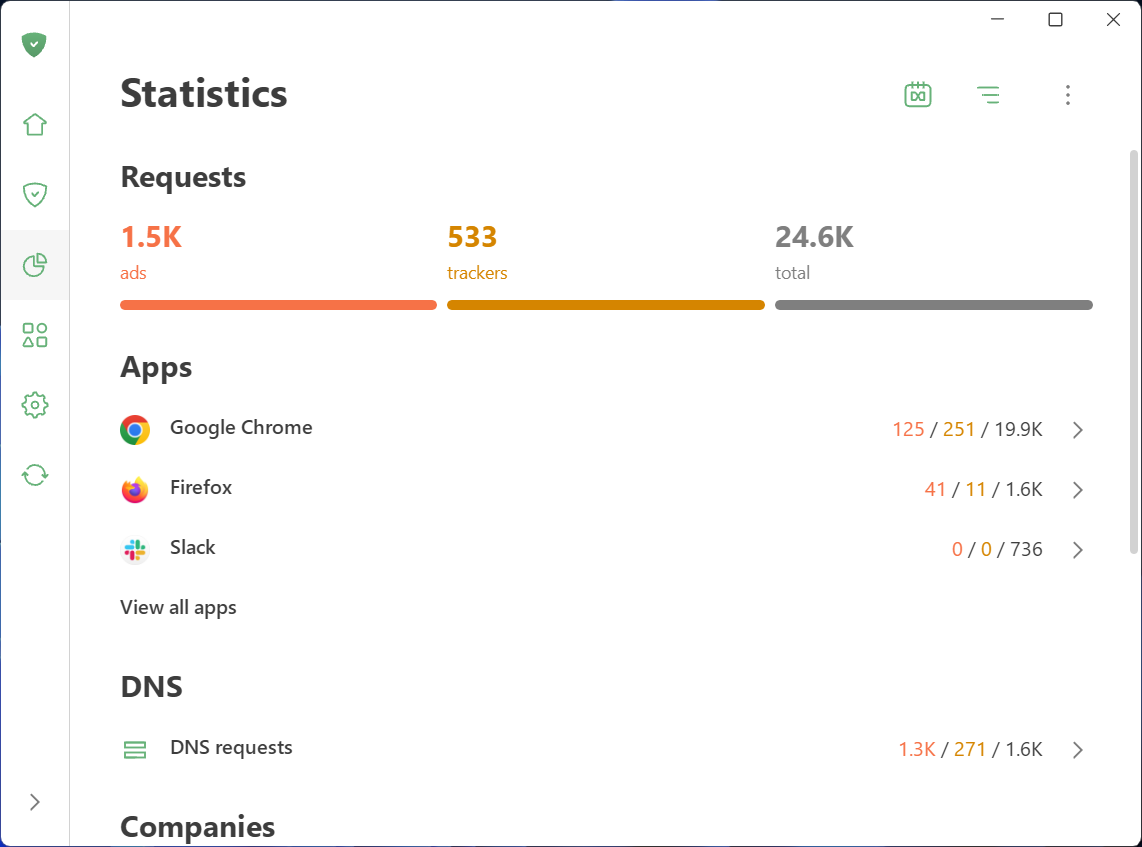
Statistics

Wondering which company’s requests are blocked most often? Which apps are trying to share your data and with whom? You can quickly identify and block anything suspicious.

Not only inside updates: A complete redesign

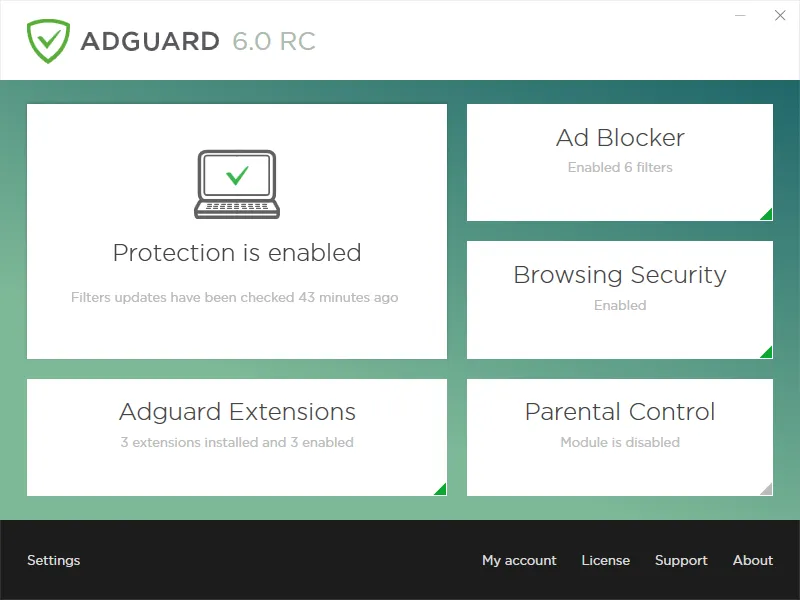
AdGuard for Windows has come a long way since its debut in 2009. Over the past 16 years, its interface has shifted alongside the changing web, evolving through versions 5, 6, and 7. For those who have been with us from the start, these might bring back some memories:
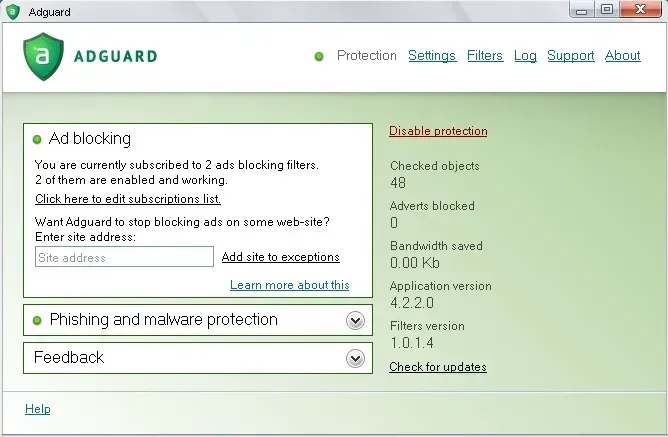
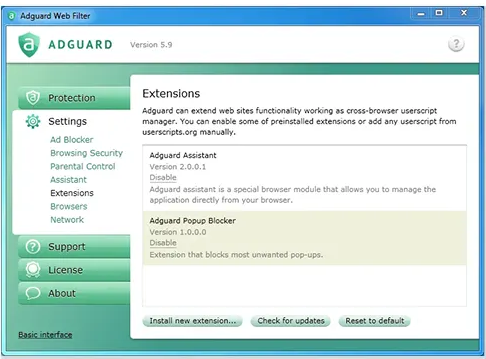
With version 8.0, we are opening a whole new chapter. The app has been completely redesigned from scratch. Our focus was on simplicity and ease of use. The most important tools are now front and center, while advanced settings are still available — just tucked away so they don’t overwhelm new users.

Let’s start with the basics and dive deeper the further we go.

Key settings in plain sight

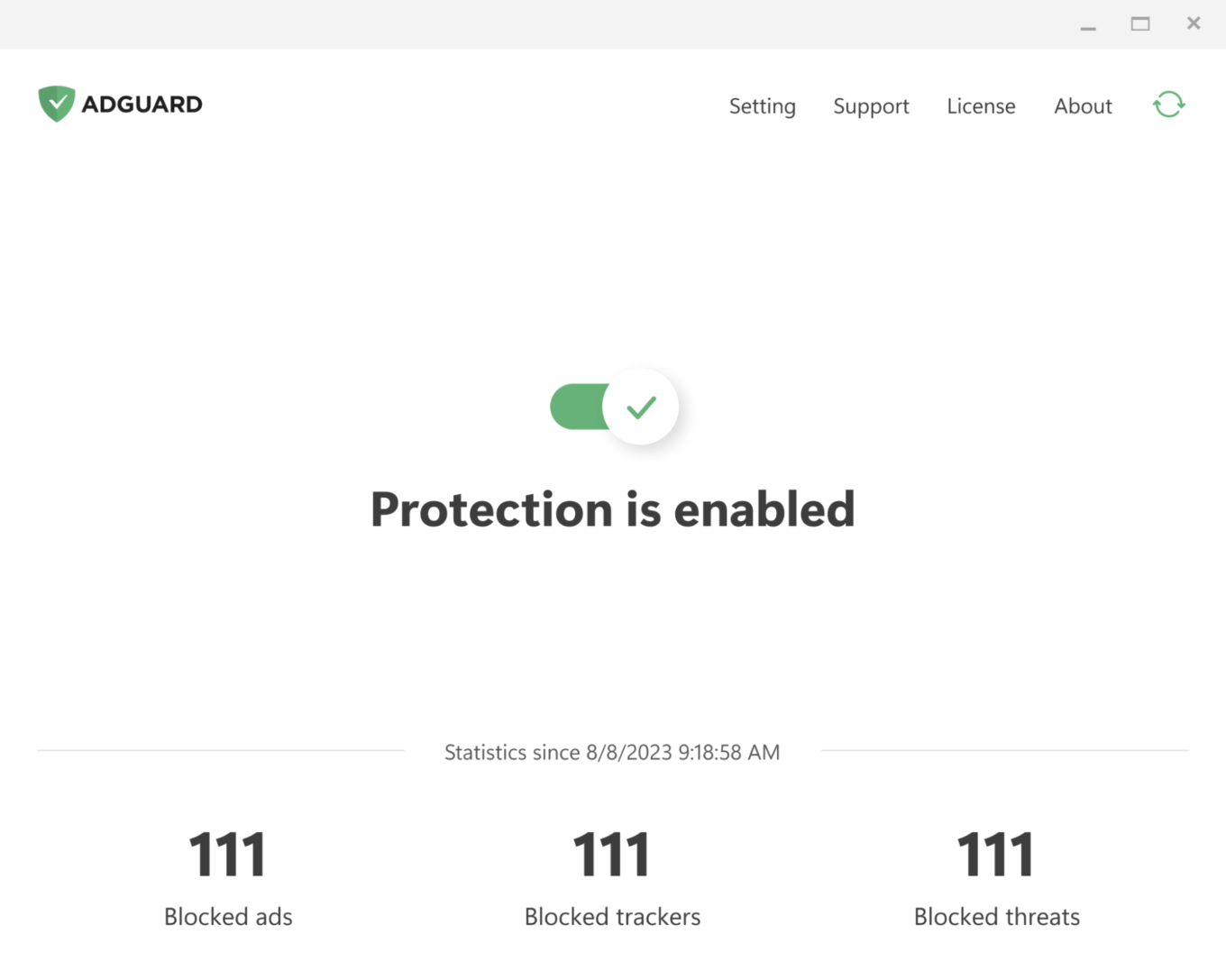
The app is designed to let you enable everything you need straight from the first screen. Just click the symbols you see — they stand for blocking ads and trackers, handling cookie notices and similar annoyances, and DNS protection. Everything you need for smooth and secure browsing.
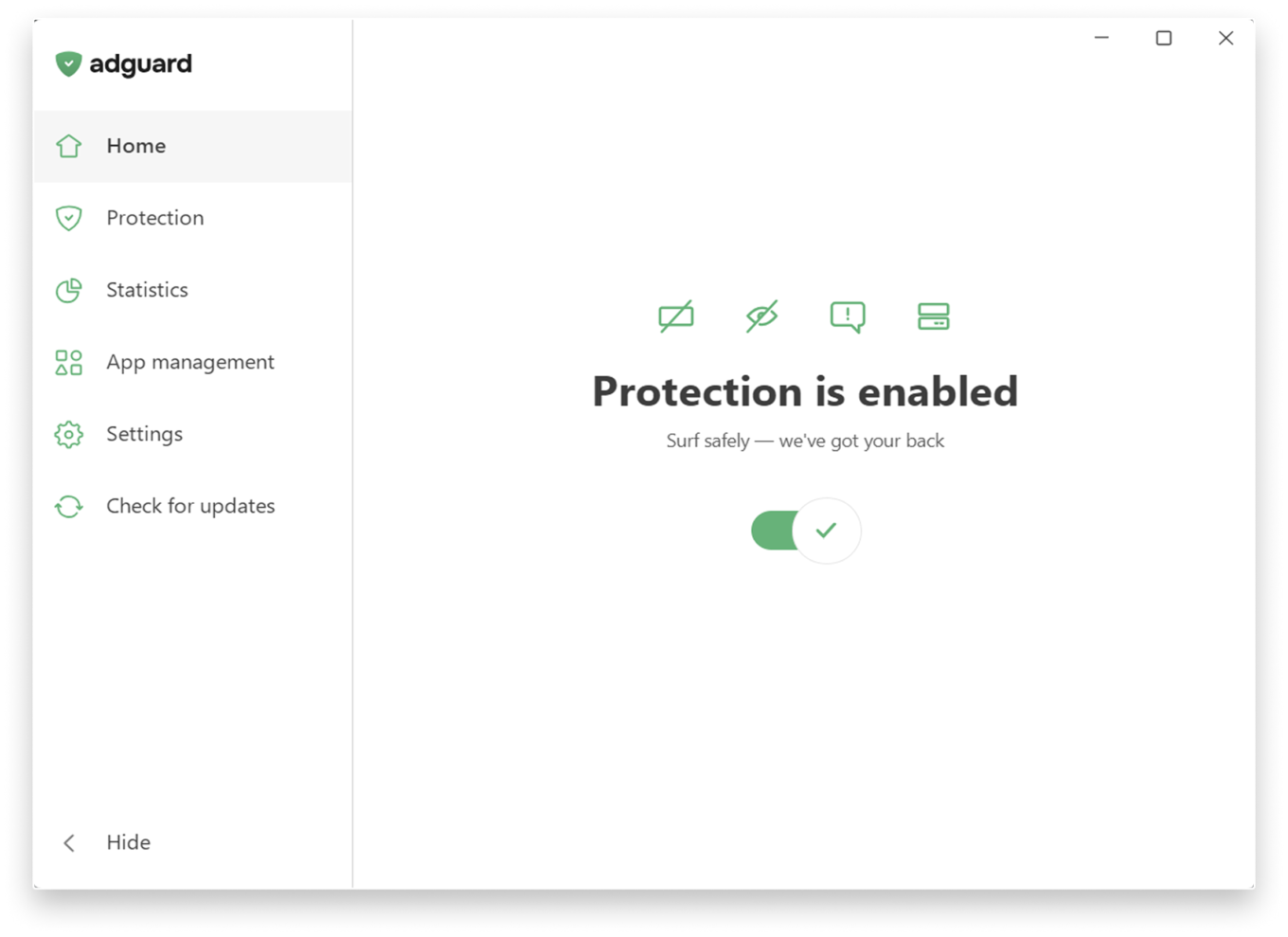
Main screen

If you want to fine-tune your protection, head to the Protection section, where settings are clearly categorized and explained in simple terms and enabled by one toggle.
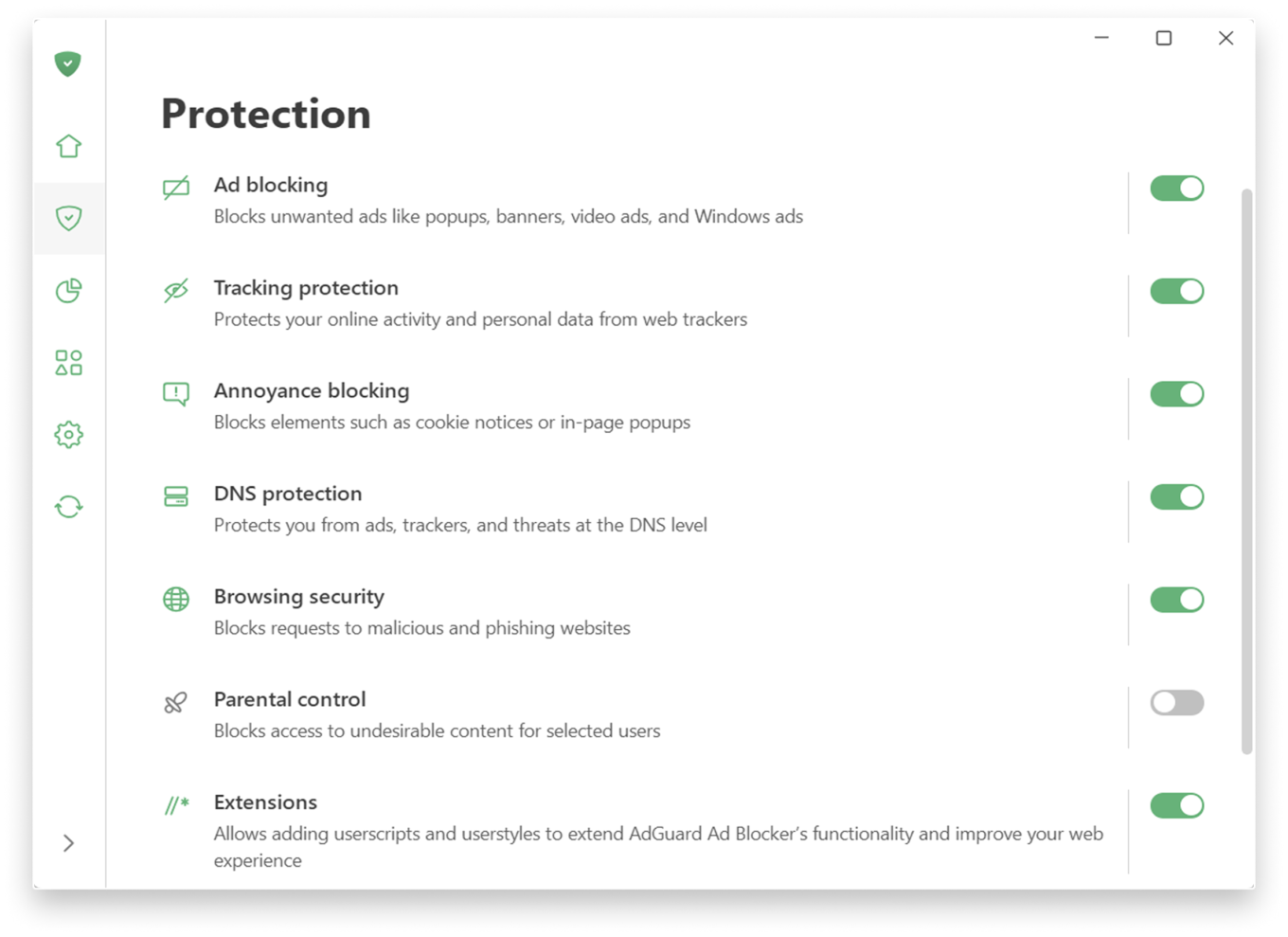
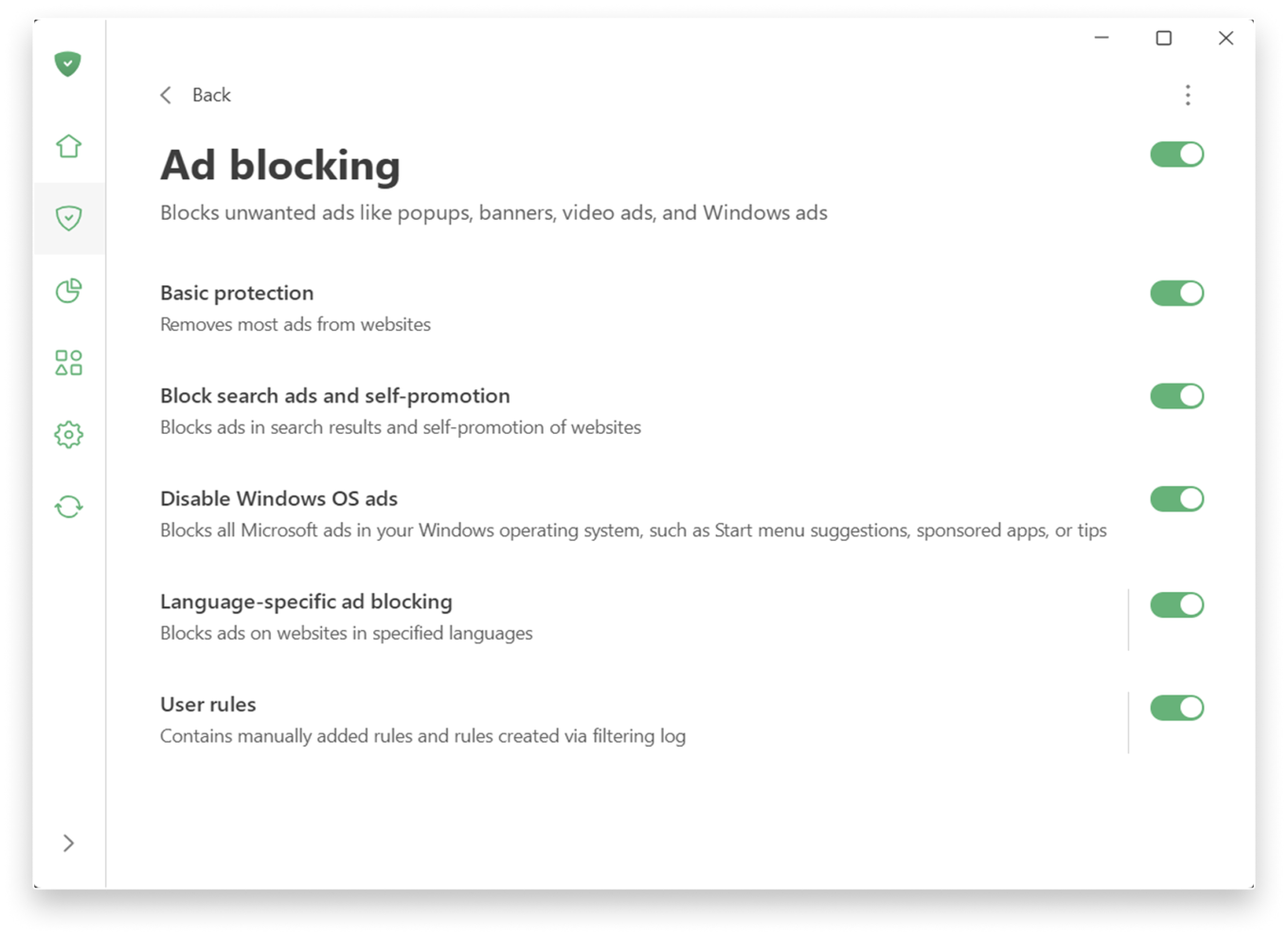
If you prefer a more personalized experience, adjust the settings further.

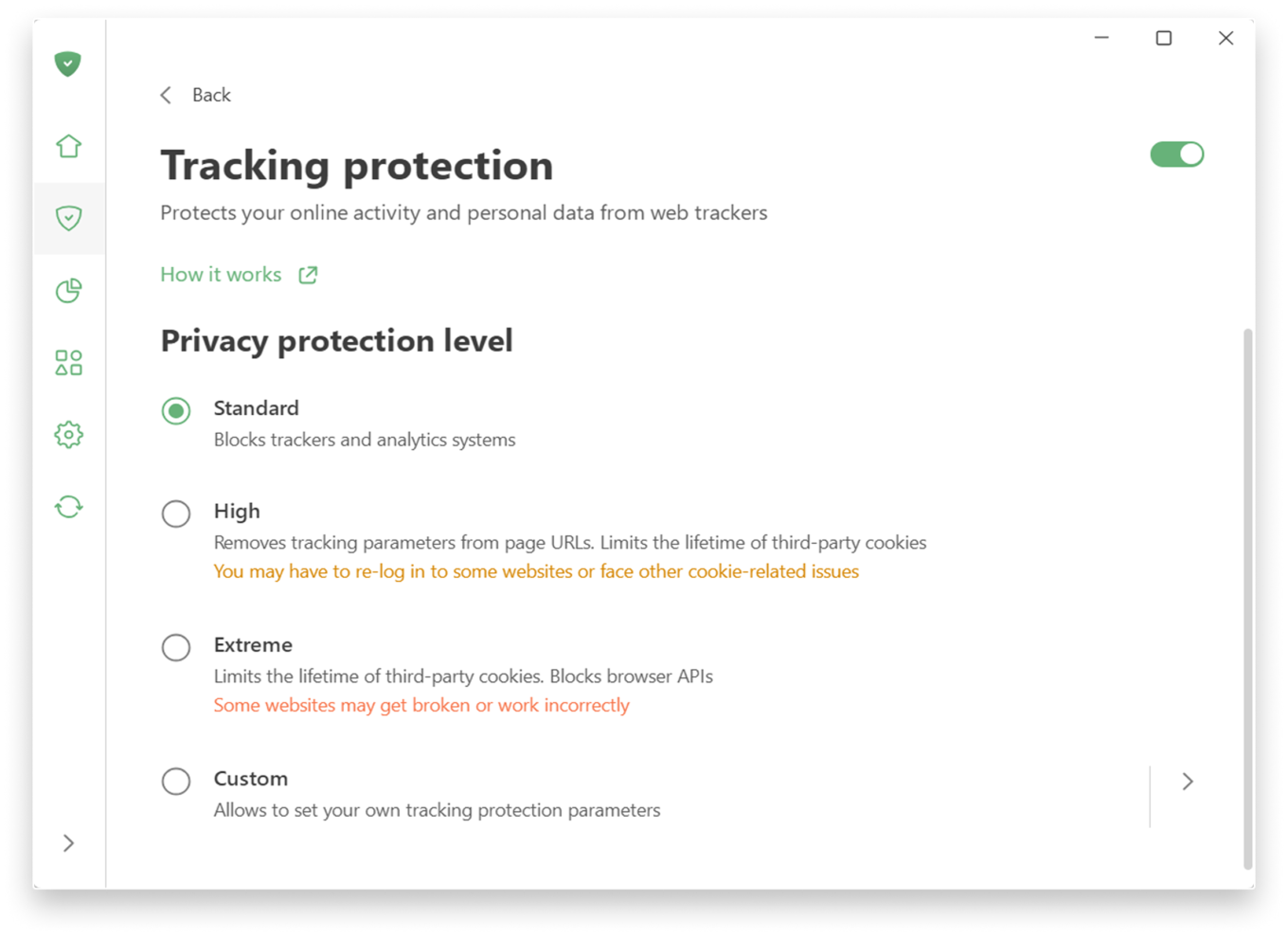
Tracking protection allows you to choose a level of protection — from a simple, comfortable experience to a more advanced one, which includes deleting cookies for enhanced privacy. There is also a custom level where you can freely fine-tune everything to suit your preferences: like blocking notifications from websites or enabling anti-DPI protection.
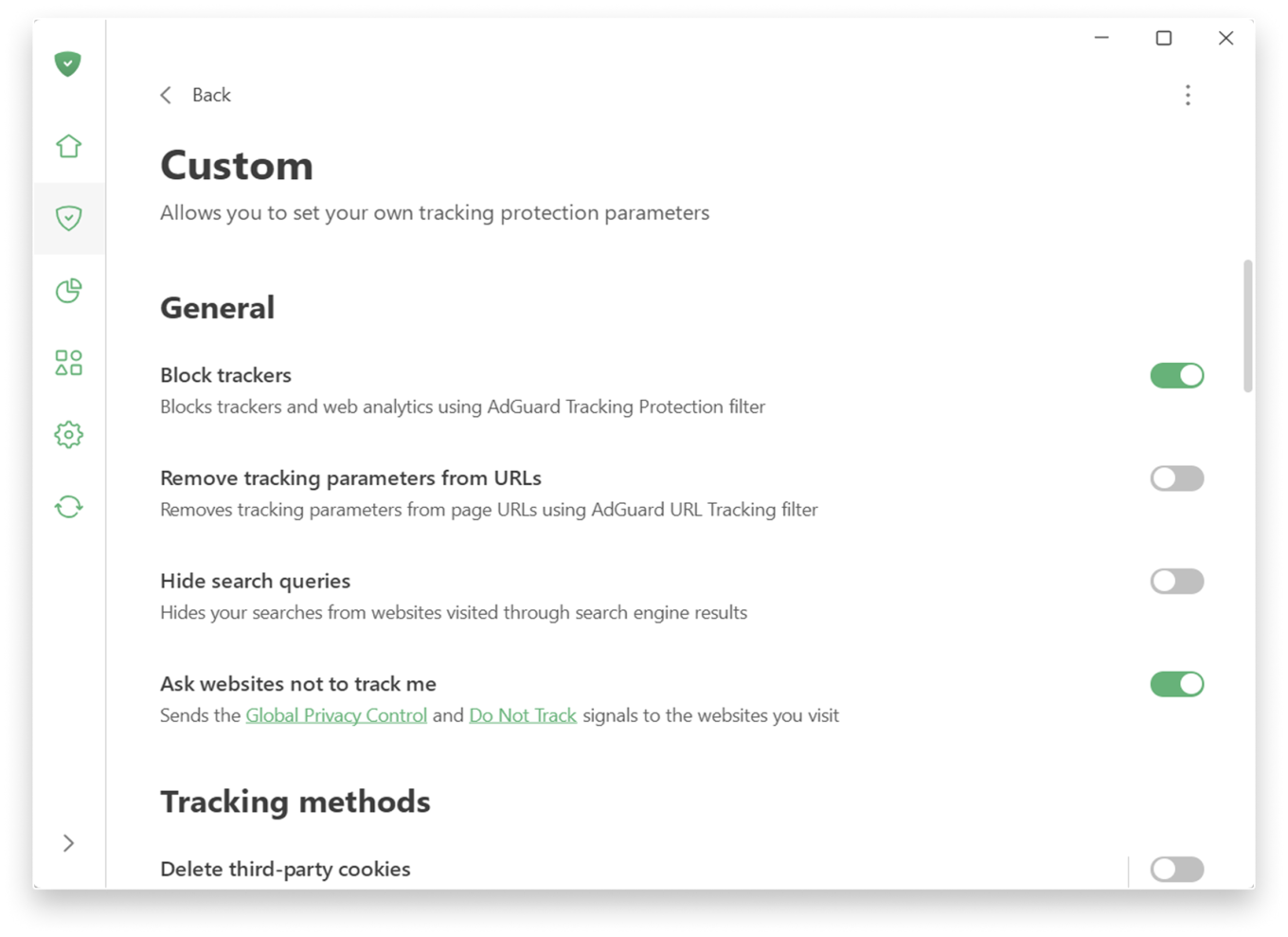
Custom level

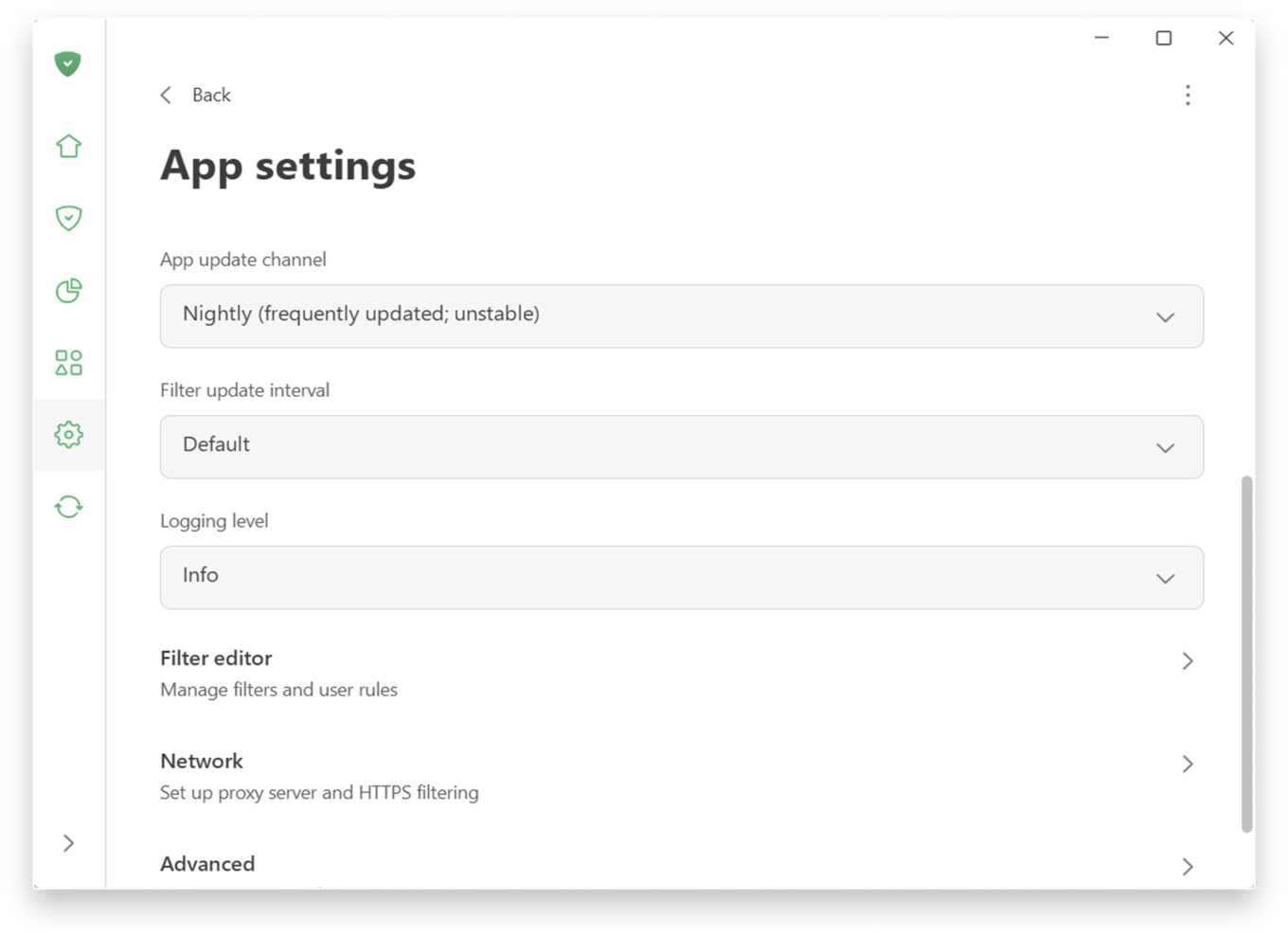
Prefer a more hands-on approach to filtering? You can find low-level and network settings in SettingsApp settings.

App settings

📚
For more details on new features, check the Knowledge Base. If you’re using an older version, there is a separate section.

Extensive testing and how we handle compatibility issues

Before releasing 8.0 we ran extensive internal testing on hundreds of applications, and the public beta program lasted more than six months. Our goal was to make sure that popular apps work correctly with the new filtering logic out of the box, without manual configuration.

In most cases, widely used applications should work normally after the upgrade. However, the Windows ecosystem is huge, and some apps or specific configurations can still cause edge cases.

If you encounter a broken app or unexpected behavior after upgrading to v8.0, please report it immediately via our GitHub repo or through support in the app. We treat such reports as high priority and will react quickly with hotfixes. Your feedback directly improves the compatibility lists that control how each app is filtered and routed.


Podobał Ci się ten post?
AdGuard VPN AdGuard DNS AdGuard Mail AdGuard Wallet
Ekran główny AdGuard dla Windows
Ekran ochrony AdGuard dla Windows, pokazujący funkcje ochrony i ustawienia
Ekran statystyki AdGuard dla Windows, pokazujący statystyki zablokowanych reklam i trackery
Ekran Zarządzanie aplikacjami w AdGuard dla Windows, pokazujący opcje zarządzania ochroną dla aplikacji zainstalowanych na urządzeniu
20 659 20659 recenzji
Doskonały!

AdGuard dla Windows: bloker reklam na PC

AdGuard dla systemu Windows to coś więcej niż bloker reklam. To wielofunkcyjne narzędzie, które blokuje reklamy, kontroluje dostęp do niebezpiecznych stron, przyspiesza ładowanie stron i chroni dzieci przed nieodpowiednimi treściami
Pobierając program, akceptujesz warunki Umowy licencyjnej
Microsoft Store
Pobierając program, akceptujesz warunki Umowy licencyjnej
AdGuard na Windows v8.0, 14-dniowa wersja próbna
Ekran główny AdGuard dla Mac
Ekran Trybu ukrytego w AdGuard dla Mac
20 659 20659 recenzji
Doskonały!

AdGuard: bloker reklam na Maca

AdGuard dla Mac to wyjątkowy bloker reklam zaprojektowany z myślą o macOS. Oprócz ochrony przed uciążliwymi reklamami w przeglądarkach i aplikacjach chroni Cię przed śledzeniem, phishingiem i oszustwami
Pobierając program, akceptujesz warunki Umowy licencyjnej
Przeczytaj więcej
AdGuard na Mac v2.19, 14-dniowa wersja próbna
Ekran główny AdGuard dla Android
Ekran Ochrona przed śledzeniem w AdGuard dla Android
Ekran Zarządzanie aplikacjami w AdGuard dla Android, pokazujący opcje zarządzania ochroną dla aplikacji zainstalowanych na urządzeniu
Ekran statystyki AdGuard dla Android, pokazujący statystyki zablokowanych reklam i trackery
Ekran główny prywatnej przeglądarki AdGuard dla Android
Kod QR, aby pobierz AdGuard dla Android
20 659 20659 recenzji
Doskonały!

AdGuard: bloker reklam na Androida

Blokuje reklamy i moduły śledzące we wszystkich przeglądarkach, grach i innych aplikacjach. Chroni Twoją prywatność i pozwala kontrolować, w jaki sposób aplikacje korzystają z Internetu. Instalowane za pomocą pliku APK
Pobierając program, akceptujesz warunki Umowy licencyjnej
Przeczytaj więcej
Skanuj, aby pobrać
Użyj dowolnego czytnika kodów QR dostępnego w Twoim urządzeniu
AdGuard na Android v4.14, 14-dniowa wersja próbna
Ekran główny AdGuard dla iOS
Ekran ochrony AdGuard dla iOS, pokazujący funkcje ochrony i ustawienia
Ekran statystyki AdGuard dla iOS, pokazujący statystyki zablokowanych reklam i trackery
Kod QR, aby pobierz AdGuard dla iOS
20 659 20659 recenzji
Doskonały!

AdGuard na iOS: bloker reklam poza Safari

Najlepszy bloker reklam na iOS dla iPhone’a i iPada. AdGuard usuwa wszelkiego rodzaju reklamy i elementy śledzące w Safari oraz chroni Twoją prywatność we wszystkich aplikacjach na poziomie DNS
Pobierając program, akceptujesz warunki Umowy licencyjnej
Przeczytaj więcej
Skanuj, aby pobrać
Użyj dowolnego czytnika kodów QR dostępnego w Twoim urządzeniu
AdGuard na iOS v4.5
Ekran główny AdGuard Content Blocker
Ekran Filtry w AdGuard Content Blocker
Ekran ustawienia w AdGuard Content Blocker
20 659 20659 recenzji
Doskonały!

Blokada treści AdGuard

AdGuard Content Blocker eliminuje wszelkiego rodzaju reklamy w przeglądarkach mobilnych, które obsługują technologię blokowania treści — a mianowicie Samsung Internet i Yandex Browser. Jego funkcje są ograniczone w porównaniu z AdGuard na Androida, ale jest darmowy, łatwy w instalacji i wydajny
Pobierając program, akceptujesz warunki Umowy licencyjnej
Przeczytaj więcej
Blokada treści AdGuard v2.8
Ekran główny AdGuard Browser Extension
Ekran Ochrona przed śledzeniem w AdGuard Browser Extension
20 659 20659 recenzji
Doskonały!

Rozszerzenie przeglądarki AdGuard

AdGuard to najszybsze i najlżejsze rozszerzenie blokowania reklam, które skutecznie blokuje wszystkie typy reklam na wszystkich stronach internetowych! Wybierz AdGuard dla swojej przeglądarki i uzyskaj szybkie i bezpieczne przeglądanie Internetu pozbawione reklam.
Instalacja
Pobierając program, akceptujesz warunki Umowy licencyjnej
Instalacja
Pobierając program, akceptujesz warunki Umowy licencyjnej
Instalacja
Pobierając program, akceptujesz warunki Umowy licencyjnej
Instalacja
Pobierając program, akceptujesz warunki Umowy licencyjnej
Instalacja
Pobierając program, akceptujesz warunki Umowy licencyjnej
Przeczytaj więcej
Instalacja
Pobierając program, akceptujesz warunki Umowy licencyjnej
Przeczytaj więcej
Rozszerzenie przeglądarki AdGuard v5.5
Ekran główny Asystenta przeglądarki
20 659 20659 recenzji
Doskonały!

Asystent AdGuard

Towarzyszące rozszerzenie przeglądarki dla aplikacji desktopowych AdGuard. Umożliwia blokowanie niestandardowych elementów na stronach internetowych, dodawanie stron internetowych do listy dozwolonych i wysyłanie raportów bezpośrednio z przeglądarki

Asystent AdGuard v1.4
20 659 20659 recenzji
Doskonały!

AdGuard Home

AdGuard Home to sieciowe rozwiązanie do blokowania reklam i modułów śledzących. Zainstaluj go raz na routerze, aby objąć nim wszystkie urządzenia w sieci domowej — nie jest wymagane żadne dodatkowe oprogramowanie klienckie. Jest to szczególnie ważne w przypadku różnych urządzeń IoT, które często stanowią zagrożenie dla Twojej prywatności

AdGuard Home v0.107
Ekran główny AdGuard Pro dla iOS
Ekran Ochrona w AdGuard Pro dla iOS, pokazujący funkcje i ustawienia ochrony
Ekran statystyki w AdGuard Pro dla iOS, pokazujący statystyki zablokowanych reklam i trackerów
20 659 20659 recenzji
Doskonały!

AdGuard Pro dla iOS

AdGuard Pro na iOS oferuje wszystkie zaawansowane funkcje blokowania reklam. Oferuje te same narzędzia, co płatna wersja AdGuard na iOS. Doskonale blokuje reklamy w Safari i pozwala dostosować ustawienia DNS, aby dostosować poziom ochrony. Blokuje reklamy w przeglądarkach i aplikacjach, chroni dzieci przed nieodpowiednimi treściami i dba o bezpieczeństwo danych osobowych.
Pobierając program, akceptujesz warunki Umowy licencyjnej
Przeczytaj więcej
AdGuard Pro dla iOS v4.5
Ekran główny AdGuard Mini dla Mac
Ekran ochrony Safari w AdGuard Mini dla Mac
Ekran tworzenia reguły w AdGuard Mini dla Mac
20 659 20659 recenzji
Doskonały!

AdGuard Mini dla Mac — bloker reklam Safari

AdGuard Mini dla komputerów Mac to potężny bloker reklam w Safari. Ta lekka aplikacja usuwa reklamy, blokuje moduły śledzące i przyspiesza ładowanie stron. Umożliwia przeglądanie internetu w Safari bez rozpraszania uwagi i chroni prywatność danych
Instalacja
Pobierając program, akceptujesz warunki Umowy licencyjnej
Przeczytaj więcej
AdGuard Mini dla Mac v2.3
Ekran główny AdGuard dla Android TV z włączoną ochroną
Ekran blokowanie reklama AdGuard dla Android TV, pokazujący jego funkcje i ustawienia
Ekran ustawienia AdGuard dla Android TV
Ekran Zarządzanie aplikacjami AdGuard dla Android TV, pokazujący aplikacje, w których reklamy i trackery są zablokowane
20 659 20659 recenzji
Doskonały!

AdGuard dla Android TV

AdGuard dla Android TV to jedyna aplikacja, która blokuje reklamy, chroni prywatność i działa jak zapora sieciowa dla Smart TV. Otrzymuj ostrzeżenia o zagrożeniach internetowych, używaj bezpiecznego DNS i korzystaj z szyfrowanego ruchu. Zrelaksuj się i zanurz się w swoich ulubionych programach z najwyższej klasy zabezpieczeniami bez reklam!
AdGuard dla Android TV v4.14, 14-dniowa wersja próbna
Maskotka AdGuard, Agnar, trzymający pingwina Linux
20 659 20659 recenzji
Doskonały!

AdGuard dla Linux

AdGuard for Linux to pierwszy na świecie systemowy bloker reklam dla systemu Linux. Blokuj reklamy i elementy śledzące na poziomie urządzenia, wybieraj spośród wstępnie zainstalowanych filtrów lub dodawaj własne — wszystko za pośrednictwem interfejsu wiersza poleceń
AdGuard dla Linux v1.4
20 659 20659 recenzji
Doskonały!

AdGuard Temp Mail

Darmowy generator tymczasowych adresów e-mail, który zapewnia anonimowość i chroni prywatność. Brak spamu w głównej skrzynce odbiorczej!
20 659 20659 recenzji
Doskonały!

AdGuard VPN

75 lokalizacji na świecie

Dostęp do wszelkich treści

Silne szyfrowanie

Polityka braku logów

Najszybsze połączenie

Wsparcie 24/7

Wypróbuj za darmo
Pobierając program, akceptujesz warunki Umowy licencyjnej
Przeczytaj więcej
20 659 20659 recenzji
Doskonały!

AdGuard DNS

AdGuard DNS to alternatywne rozwiązanie do blokowania reklam, ochrony prywatności i kontroli rodzicielskiej. Łatwy w konfiguracji i darmowy, zapewnia niezbędną minimalną ochronę przed reklamami, śledzeniem i phishingiem, bez względu na platformę i urządzenie, z którego korzystasz.
20 659 20659 recenzji
Doskonały!

AdGuard Mail

Chroń swoją tożsamość, unikaj spamu i zabezpiecz swoją skrzynkę odbiorczą dzięki naszym aliasom i tymczasowym adresom e-mail. Skorzystaj z naszej bezpłatnej usługi przekazywania e-maili oraz aplikacji na wszystkie systemy operacyjne
20 659 20659 recenzji
Doskonały!

AdGuard Wallet

Bezpieczny i prywatny portfel kryptowalutowy, który daje Ci pełną kontrolę nad Twoimi aktywami. Zarządzaj wieloma portfelami i odkrywaj tysiące kryptowalut, aby je przechowywać, wysyłać i wymieniać
Rozpoczęto pobieranie AdGuard Kliknij przycisk wskazany strzałką, aby rozpocząć instalację Wybierz „Otwórz” i kliknij „OK”. Poczekaj aż plik zostanie pobrany. W otwartym oknie, przeciągnij ikonę AdGuard do folderu „Aplikacje”. Dziękujemy za wybrania AdGuard! Wybierz „Otrwórz” i kliknij „OK”. Poczekaj aż plik zostanie pobrany. W otwartym kliknij „Instaluj”. Dziękujemy za wybrania AdGuard!
Zainstaluj również AdGuard dla urządzeń mobilnych