Firefox just added built-in ad blocking on iPhone. Do you still need a separate blocker?
On September 1, Mozilla announced a built-in ad blocker for Firefox on iOS that it says “blocks many third-party ads and ad-related trackers before they load.” There’s no extension to install: users can simply turn it on in Firefox’s settings.
For people who already use Firefox on their iPhone, this is a welcome upgrade. It offers a quick way to see fewer ads without adding another app or changing browsers. Still, the feature only takes you so far. Search ads, ads served directly by the sites you visit, and Firefox’s own sponsored content will remain, and you get little say over what is blocked. How helpful this built-in blocker is really comes down to what you expect from it — and how many ads you're willing to ignore.
That also points to a wider iOS problem: the browser you choose largely decides which blocking tools you can use. We’ll come back to Apple’s role in that. First, let’s look at how Firefox’s blocker works and where it stops.
What Firefox's new blocker actually does
Firefox uses the content-blocking tools built into WebKit, Apple’s browser engine, together with rules from EasyList.
EasyList is a community-made filter list used by well-known blockers such as uBlock Origin and Adblock Plus.
A bit of history:AdGuard’s Base filter has always included most EasyList rules, but it has never been just EasyList: we’ve been developing and expanding it ourselves from the start.
Using the same list doesn’t guarantee the same results, though. These also depend on the other filters and filtering methods each blocker supports, how often its rules are updated, and what the operating system allows.
Mozilla says its built-in blocker stops many third-party ads — ads loaded from advertising networks separate from the site you’re visiting. Firefox blocks web addresses that match its filtering rules. It also stops some ad trackers and works alongside Enhanced Tracking Protection.
The blocker is free and turned off by default. To enable it, go to Settings → Browsing → Ad Blocker. According to Mozilla, the feature is rolling out gradually, so the option may not be available to everyone yet. It also requires the remote improvements setting to be enabled.
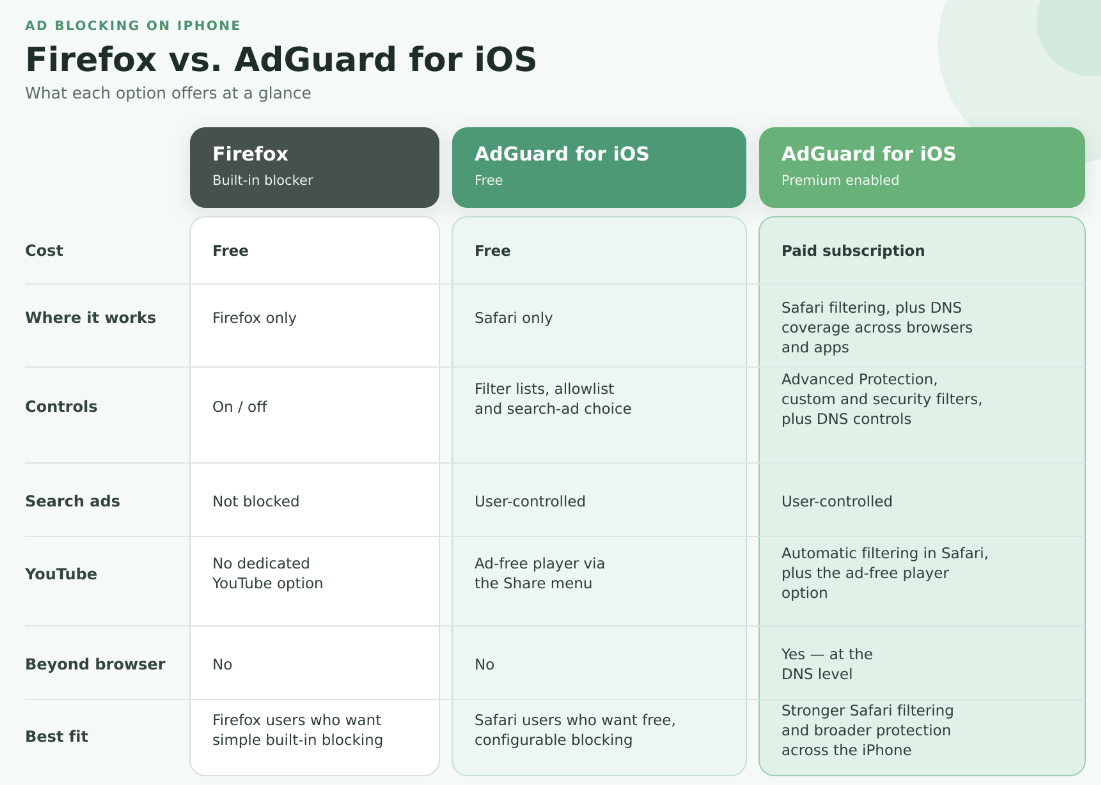
Because the blocker is baked into Firefox, it only filters content you open in that browser. If you switch to Safari, open the YouTube app, or play a game with ads, it won’t affect the advertising you see there. Its protection stops at Firefox, rather than covering your iPhone as a whole.
So, which ads still slip through?
Firefox’s built-in blocker won’t block these three main types of ads:
First-party ads delivered directly by the website you’re visiting
Ads in search results, such as sponsored results shown by Google, Bing, or other search engines
Firefox’s own sponsored content, such as sponsored shortcuts on the new tab page
Why leave them in? First-party ads can be harder to block cleanly because their requests often come from the same website as the content. Blocking the website’s requests too broadly could also break the article, video, or other content you came for.
Search ads are a different case. Leaving them untouched makes sense for Mozilla’s wallet. Search partnerships are a major source of its income. In 2024, Mozilla received $498 million in royalties — around 73% of its $680 million in total revenue and support. The same logic applies to Firefox’s own sponsored content: these placements benefit Mozilla directly. But you can disable sponsored shortcuts separately in Firefox’s Homepage settings.
Customization is also pretty limited: you basically get an on/off switch. You can’t add more filter lists, write your own blocking rules, or tap an annoying element on a page to hide it. That keeps the feature easy to use, but it also leaves Firefox deciding what stays and what goes. If your goal is simply to see fewer ads in Firefox, turning on its blocker may be enough. But if you want to choose your filters, allow ads on specific sites, or decide whether search ads stay, Apple effectively pushes you towards Safari — the only browser on iOS where dedicated blockers get this level of access.
What free AdGuard for iOS offers
If Safari is your main browser, AdGuard for iOS offers more control even in its free version. You can choose filters for ads, trackers, websites in different languages, and annoyances such as cookie banners and social media widgets. You can also add favorite websites to your allowlist, so their ads remain visible while ads elsewhere are blocked.
In AdGuard for iOS, search ads are blocked under the default filter setup. If you want to see them, you can enable the optional Filter unblocking search ads and self-promotion. Here’s how the filter works.
There is one clear limit: in the free version of AdGuard for iOS, ad blocking is limited to Safari. Installing the app won’t block ads in Firefox or other apps. If you want to stay with Firefox and use a free blocker, Mozilla’s built-in feature is your best bet. If Safari is your main browser and you want more control, free AdGuard for iOS is the better fit.
That’s the free-to-free comparison. With AdGuard Premium, the picture changes: Safari gets stronger filtering, plus a separate DNS protection layer that works across browsers and apps on your iPhone.
What Premium adds to AdGuard for iOS
With Premium enabled, AdGuard for iOS goes further in two ways: it strengthens filtering in Safari and extends protection beyond the browser.
Advanced Protection helps with harder-to-block ads in Safari, including ads on YouTube. With it enabled, you can watch YouTube in Safari and have ads filtered automatically. For a more convenient option, you can find a video directly in the YouTube app, tap Share → More → Block YouTube Ads (by AdGuard), and it will open in AdGuard’s ad-free player.
The biggest difference from the free version is DNS protection. Once enabled, it can block connections to known advertising and tracking domains across all browsers and apps — including Firefox, Chrome, games, and shopping or news apps. Premium also unlocks custom filter lists and security filters. You can see the full comparison of free and paid features.
DNS protection still has its limits, though. Because it blocks whole domains, it can’t remove an ad served from the same domain as useful content without blocking that content too. It also can’t clean up the empty space a blocked ad leaves behind.
If Firefox is your main browser, the two blockers can work side by side. Firefox’s built-in blocker filters pages inside Firefox, while DNS protection in AdGuard for iOS blocks known ad and tracking domains across Firefox and other apps. They tackle different parts of the problem, so one doesn’t make the other redundant.
Why ad blocking on iOS is harder than it should be
Mozilla says the new Firefox blocker “illustrates a wider policy problem.” On desktop and Android, Firefox users can install independent add-ons, including ad blockers. On iOS, they don’t get the same choice. Apple’s App Review Guidelines generally require apps to remain self-contained and restrict them from downloading code that changes how they work. Mozilla says these rules, together with Apple’s browser policies, prevent it from bringing Firefox’s full add-on ecosystem to the iPhone. Instead, Mozilla has had to build ad blocking directly into Firefox.
That said, Apple does provide an official route for independent blockers on iOS — through Safari, and within limits it sets. Each content blocker can hold up to 150,000 filtering rules, and some rules that work on other platforms are not supported in Safari on iOS. To work around these limits, we split AdGuard’s filters across six content blockers and use a Safari web extension for Advanced Protection, which handles more complex ads.
Even with those workarounds, AdGuard’s page-level filtering remains tied to Safari and cannot simply be carried over to Firefox. DNS protection can block known advertising and tracking domains in Firefox, but it cannot inspect the page and remove individual elements in the same way. A dedicated iOS blocker can therefore add another layer of protection to Firefox, but it cannot work there as a full browser extension.
In our view, this gives Safari an anticompetitive advantage. Apple controls iOS, runs the main channel for distributing iPhone apps, and develops Safari. Its own browser supports independent blocking extensions, while competing browsers cannot give users the same freedom to choose their blocker. If getting the filtering tools you want means moving to Safari, Apple’s rules are already influencing your choice of browser.
Firefox’s new blocker is a useful response to these limits, but it doesn’t make dedicated blockers unnecessary. Building an effective blocker is not simply a matter of plugging in EasyList and calling it done. EasyList is a common foundation used across different blockers. Popular dedicated blockers build on it with a whole stack of additional filters, and those filters have to be constantly maintained as websites and advertising techniques change.
The real difference is focus. Ad blocking is one of many features a browser developer has to maintain. For us, a dedicated blocker, it is the main job. Firefox can keep improving its own tool, but users shouldn’t be limited to whatever their browser chooses to build. Only Apple can give Firefox users the same choice of independent blockers that Safari users already have. The ball is in Apple’s court.